DaVinci Resolve Nodes Explained (2026): Serial, Layer, Parallel & Outside Node — Complete Guide
Focus Keywords: DaVinci Resolve nodes, serial node vs layer node, parallel node DaVinci Resolve, outside node DaVinci Resolve
All Your Node Doubts, Cleared in One Place
Basically, this is the one topic every editor gets stuck on the moment they open the Color page for the first time. You come from Premiere or CapCut, where everything is a layer stacked on top of the clip — and Resolve gives you a blank grey box instead. What is this node? What type of nodes are there? And when should you actually take this node over that one? Those are the exact questions I'm clearing in this guide, and if anything is still unclear after reading, drop it in the comments on the video below — I reply to all of them, and if enough people ask the same thing I'll make a deeper follow-up.
This article is already covered in depth in my full course, Decoding DaVinci Resolve — the link is at the bottom if you want the complete, structured version with more grading examples. But everything you need to actually understand nodes and start using them correctly today is right here, free.
Watch the full node-by-node walkthrough in Hindi — same examples covered below, live inside the Color page.
Node 1: Serial Node — Your Basic Layer
The serial node is the first thing you see when you open any clip on the Color page, and it's the simplest to understand: think of it as your regular adjustment layer. Whatever correction you make here — increase exposure, reduce exposure, push saturation — carries forward to whatever comes after it.
To add one, go to Add Node and you'll see every node type listed with its shortcut right next to it — memorise these, because once you're grading for a client on a deadline, that half-second saved per node adds up fast. The shortcut for a serial node is Alt+S. Click it once, you get a node. Click it again, you get another one chained after it. You can keep adding as many as you want, and Ctrl+Z undoes them the same way any action would.
One thing that trips people up: a serial node only affects what comes after it if the connection line is actually attached. If you drag a node off to the side and its line disconnects, that node does nothing — increase saturation, change hue, nothing will happen on your image until you reconnect it. Always check the line before you assume your node isn't working.
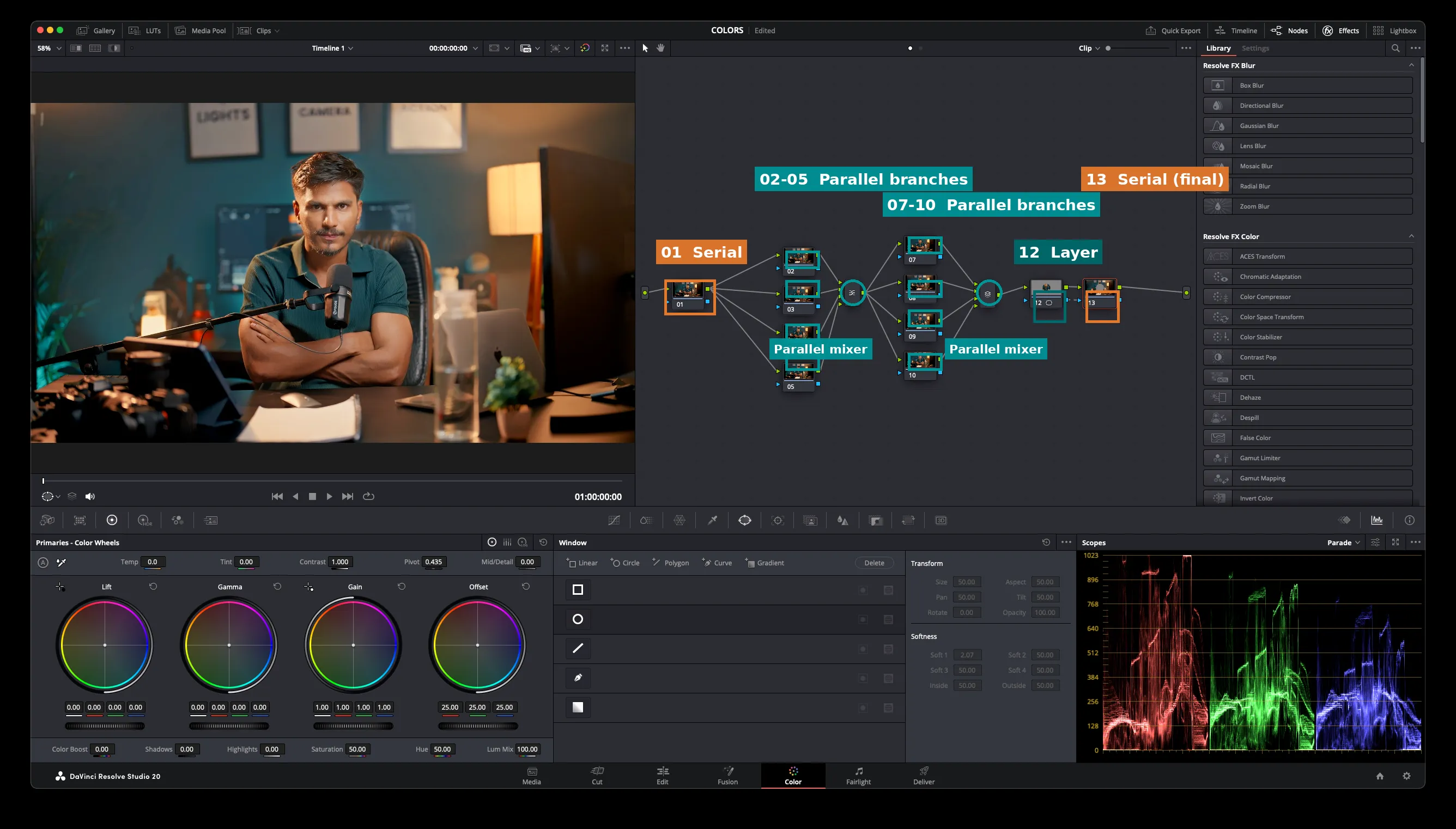
A real grade from my Color page — node 01 is the base Serial correction, 02-05 and 07-10 are two separate Parallel branch groups (each merging back through a Parallel mixer icon), node 12 is a Layer node, and 13 is the final Serial output. This particular tree doesn't use a window/mask, so there's no Outside node here — see the section below for how that one works.
Node 2: Layer Node — Mixing Two Grades Like Photoshop Layers
The layer node is where people coming from Photoshop finally feel at home. Press Alt and click, or right-click an existing node → Add Node → Add Layer Node. What it actually does is take two separate serial branches and mix them together like layers — and just like Photoshop, order matters: whichever branch sits on top overwrites whichever branch sits below it.
Here's the demo I always use to make this click: say you want to mask and brighten just the face. You build your mask on one branch, add a Power Window if you need to isolate it further. Now if that masked branch is sitting below another node in the layer stack, the node above it will overwrite what you just did — your mask won't show up, because the node on top wins. Move your masked branch above the other one, and suddenly it applies correctly.
I proved this with a colour test — put red on one branch, green on the layer node above it. The result stayed green, because the top layer wins, exactly like a Photoshop layer stack. But the moment I masked the face on the top branch, only the face changed while the rest of the frame kept showing whatever was underneath. That's the entire logic of a layer node in one sentence: top branch wins where it has content, and the layer below shows through everywhere else.
Node 3: Parallel Node — Mixing Like Colour Theory, Not Stacking
This is the one people confuse with the layer node, but it behaves completely differently. Add it with Alt+P, or from the Add Node menu. A parallel node also takes two serial branches — but instead of one branch overwriting the other, it mixes them like colour theory.
The easiest way to actually see this: put pure red on one branch and pure blue on the parallel branch. You don't get red or blue — you get magenta, because the node is genuinely blending the two colours mathematically. Swap blue for green and you'll land on a warm yellowish tone instead. This is exactly how you'd build two independent creative pushes — say a cooler shadow branch and a warmer highlight branch — and let Resolve blend them into one cohesive look instead of one flatly overwriting the other.
Layer node vs Parallel node — the one-line difference: Layer node = top branch overwrites, like Photoshop. Parallel node = both branches blend together, like mixing paint.
| Node Type | Shortcut | What It Actually Does |
|---|---|---|
| Serial | Alt+S | Basic chain — each node processes the output of the one before it |
| Layer | Alt (click) / Add Node menu | Stacks two branches — top branch overwrites bottom, like Photoshop |
| Parallel | Alt+P | Blends two branches together, colour-theory style — not an overwrite |
| Outside | Add Node menu | Inverts whatever mask/window you built — grades everything except that area |
| Add Serial Before | Shift+S | Inserts a fresh serial node before your current one in the chain |
Node 4: Outside Node — Grading the Opposite of Your Mask
Once you've built a window or a mask, the outside node does the exact opposite of what you'd expect from a normal node — it flips the selection. Build a window around your subject, add an outside node, and now whatever colour or correction you add applies to everything except what's inside that window, instead of the window itself. If your mask was covering the face, the outside node grades everything but the face.
This is the fastest way to do a background grade without hand-building a second inverted matte — you already have the mask, the outside node just flips how it reads it.
Add Serial Before — When You Need a Node Earlier in the Chain
Sometimes you've already built three or four nodes deep and realise you need a correction to happen before everything else — say a white balance fix that every other node down the chain should be reading correctly. Instead of rebuilding the tree, right-click your first node → Add Node → Add Serial Before, or just press Shift+S on the node you want to insert ahead of. It drops a new serial node in front, and every node after it now reads through your new correction first.
The Four (Plus One) You Actually Need to Know
To recap — there are four main node types worth learning properly, plus the Add-Before trick as a bonus move: Serial, Parallel, Layer, and Outside. Everything else in the Color page — qualifiers, power windows, tracking — sits on top of this same node logic. Once these four click, the rest of grading stops feeling like guesswork and starts feeling like a system you can control. I go deeper into qualifiers, tracking, and full scene-matching workflows inside Decoding DaVinci Resolve, my complete course, if you want to take this further.
Want the complete, in-depth version — qualifiers, power windows, tracking, and full scene-matching workflows?
Check out Decoding DaVinci Resolve →Quick FAQ
Q: What's the shortcut to add a node in DaVinci Resolve?Alt+S for Serial, Alt+P for Parallel, Shift+S for Add Serial Before. Layer and Outside nodes are added from the Add Node menu (right-click on any node).
Q: What's the difference between a Layer node and a Parallel node?
Layer node overwrites — the top branch wins wherever it has content, exactly like a Photoshop layer. Parallel node blends — both branches mix together like colour theory (red + blue = magenta).
Q: Why isn't my node doing anything?
Check the connection line first. If a node gets dragged and its line disconnects, it stops affecting the image completely even though it still looks correct in the tree.
Q: Do nodes work in DaVinci Resolve Free?
Yes — the full node system (Serial, Layer, Parallel, Outside, Add Before) is available in the free version. Nothing here is gated behind Studio.